
Step by step remote mirroring in IBM DS 4K series Tutorial:
Access the primary and secondary storage sub systems using IBM Storage Manager Client.
Both the primary and secondary storage manage by the same IBM Storage manager Client.
In this tutorial, i am going to use the two sub systems.
1. DBsenthil_pri
2. DBsenthil_Sec

First check the remote premium feature is enabled on both the systems.

In primary system, it is enabled but not activated. Do the same steps on both the sub systems.

Now activate the remote mirroring.

For activating the remote mirroring, it will create two mirror repositories.

Select the RAID level and Disks.

The mirror repository LUNs created.
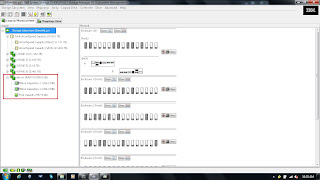
The Source LUN which, i want to replicate. In this tutorial,
Senthil_Pri is an array.
The Source LUN is LUN-Pri.

In the secondary sub system, do all the steps and find the LUN which is used for the secondary.

Select the Secondary LUN . The secondary LUN is LUN-Sec

This picture shows the exact source and Secondary LUN information.

In the primary storage sub system, Select the Source LUN and create remote mirror.

It will open the remote mirror configuration wizard.

It automatically detects , the secondary storage sub system. Select the secondary system.

Select the secondary LUN.

Select the replication type (Synchronous or Asynchronous)


Sync and replication under process.

Now primary and secondary is ready.

Check the LUN properties.

All the best.
Senthilkumar Muthusamy
Access the primary and secondary storage sub systems using IBM Storage Manager Client.
Both the primary and secondary storage manage by the same IBM Storage manager Client.
In this tutorial, i am going to use the two sub systems.
1. DBsenthil_pri
2. DBsenthil_Sec

First check the remote premium feature is enabled on both the systems.

In primary system, it is enabled but not activated. Do the same steps on both the sub systems.

Now activate the remote mirroring.

For activating the remote mirroring, it will create two mirror repositories.

Select the RAID level and Disks.

The mirror repository LUNs created.

The Source LUN which, i want to replicate. In this tutorial,
Senthil_Pri is an array.
The Source LUN is LUN-Pri.

In the secondary sub system, do all the steps and find the LUN which is used for the secondary.

Select the Secondary LUN . The secondary LUN is LUN-Sec

This picture shows the exact source and Secondary LUN information.

In the primary storage sub system, Select the Source LUN and create remote mirror.

It will open the remote mirror configuration wizard.

It automatically detects , the secondary storage sub system. Select the secondary system.

Select the secondary LUN.

Select the replication type (Synchronous or Asynchronous)


Sync and replication under process.

Now primary and secondary is ready.

Check the LUN properties.

All the best.
Senthilkumar Muthusamy


