Wednesday, February 26, 2020

Veeam ONE - IT Monitoring Solutions


Veeam ONE is a comprehensive solution developed by Veeam Software for managing virtual and data protection environments. Veeam ONE enables real-time monitoring, business documentation and management reporting for Veeam Backup & Replication, VMware vSphere and Microsoft Hyper-V.

Veeam ONE is designed to give IT administrators peace-of-mind to manage every aspect of the modern virtual environment. Every Veeam ONE capability meets a specific business challenge — from monitoring the state of VMs and their performance, generating reports for capacity planning and upgrade purposes, to providing management with transparent and granular views of the virtual infrastructure from a business-oriented perspective.

Veeam ONE incorporates the following software components:

·         Veeam ONE Monitor is the primary tool used for monitoring the virtual environment and Veeam Backup & Replication infrastructure. In the Veeam ONE Monitor console, you can manage, view and interact with alarms and monitoring data, analyze performance of virtual and backup infrastructure components, track the efficiency of data protection operations, troubleshoot issues, generate reports and administer monitoring settings.
·         Veeam ONE Reporter provides a set of dashboards and reports that allow you to verify configuration issues, optimize resource allocation and utilization, track implemented changes, plan capacity growth and track whether mission-critical VMs are properly protected in the virtualized datacenter.

Veeam ONE Monitor and Veeam ONE Reporter are installed with one setup and provide a single cohesive solution.

Veeam ONE Architecture:
Veeam ONE relies on client-server architecture to work effectively in environments of any size and complexity. Veeam ONE architecture includes the following structural components:

·         Veeam ONE Server
Veeam ONE Server is responsible for collecting data from virtual servers, vCloud Director servers and Veeam Backup & Replication servers, and storing this data into the database. As part of Veeam ONE Server, the following components are installed: Veeam ONE Monitor Server and Veeam ONE Reporter Server.

·         Veeam ONE Web UI
Veeam ONE Web UI is a client part for Veeam ONE Reporter. Veeam ONE Web UI communicates with the database, processes and displays data in a web-based interface.

·         Veeam ONE Monitor Client
Veeam ONE Monitor Client is a client part for Veeam ONE Monitor Server. Veeam ONE Monitor Client communicates with the Veeam ONE Monitor Server installed locally or remotely.

·         Veeam ONE Database
Veeam ONE database stores data used by product components. The database is hosted on a Microsoft SQL Server that can run remotely, or can be co-installed with other Veeam ONE components.

·         Veeam ONE Agent
Veeam ONE agent is a component that enables communication with Veeam Backup & Replication servers, performs collection of logs, and sends remediation commands.

Veeam ONE agent can work in the following modes:

o    Server
In this mode, Veeam ONE agent is responsible for analyzing log data and signature updates.
Veeam ONE agent server is included into Veeam ONE installation package and deployed on the machine running Veeam ONE Monitor server during product installation.
o    Client
In this mode, Veeam ONE agent is responsible for collecting logs and executing remediation actions on Veeam Backup & Replication servers.By default,
By default, Veeam ONE agent client is deployed on Veeam Backup & Replication servers when you connect these servers to Veeam ONE.


Veeam ONE Business View Reporting:


Veeam ONE Reporter integrates with Veeam ONE Business View and allows you to create reports and dashboards for business view groups. For example, if you group VMs by department, you can create reports for a specific department in your organization.


Veeam ONE Reporter:


Veeam ONE Reporter — part of an integrated Veeam ONE solution — is designed for documenting and reporting on the Veeam Backup & Replication infrastructure, VMware vSphere, vCloud Director and Microsoft Hyper-V environments. Veeam ONE Reporter includes detailed reports and dashboards for documentation, analysis, decision-making, chargeback, change tracking, capacity planning and optimization of resource utilization.


Veeam Backup Enterprise Manager:

Veeam Backup Enterprise Manager (Enterprise Manager) is a management and reporting component that allows you to manage multiple Veeam Backup & Replication installations from a single web console. Veeam Backup Enterprise Manager helps you optimize performance in remote office/branch office (ROBO) and large-scale deployments and maintain a view of your entire virtual environment.

The distributed architecture of Veeam Backup & Replication allows you to create a custom backup infrastructure that meets your company needs. Veeam Backup Enterprise Manager manages backup and replication according to your administrative, business and security requirements and restrictions. With a number of Veeam Backup & Replication instances installed on different servers, Veeam Backup Enterprise Manager acts as a single management point. It allows you to control license distribution, manage backup jobs across the backup infrastructure, analyze operation statistics of Veeam backup servers, perform restore operations, and so on.

In particular, with Veeam Backup Enterprise Manager you can:

·         Manage jobs across a number of Veeam backup servers.
·         View on-going reporting data for all jobs running on these servers, set up email notifications to get information on the status of all jobs.
·         Search for machines, file shares, and guest files in backups and replicas.
·         Perform recovery operations for VMs and physical machines, including 1-Click restore, 1-click guest OS file restore and application items restore (for Microsoft Exchange mailboxes, Microsoft SQL Server databases and Oracle databases); perform 1-Click restore for file share backups.
·         Centrally manage and update licenses to ensure compliance.
·         Delegate permissions for restore operations to personnel in charge.
·         Manage VMware vCloud Director organizations and support their administrators with the Veeam Self-Service Backup Portal.
·         Manage vSphere user accounts and support them with the vSphere Self-Service Backup Portal.
·         Install vSphere Web Client plug-in on vCenter servers.
·         Implement data encryption and decryption processes for the Veeam solutions.
·         Provide operation automation via Veeam Backup RESTful API.


Veeam Availability Suite 10 Upgrade


To upgrade Veeam Backup & Replication to version 10, perform the following steps:

1. Download the latest version of the Veeam Backup & Replication ISO from the Veeam Backup & Replication Download page.
2.  Make sure the latest run for all existing jobs has completed successfully. Rerun the failed jobs.
3. Make sure there are no running jobs, restore sessions, Instant VM Recovery sessions and SureBackup jobs. We recommend that you do not stop running jobs and let them complete successfully. Disable any periodic and backup copy jobs temporarily to prevent them from starting during the upgrade.
4.   Mount the product ISO and use autorun, or run the Setup.exe file.
5.   Click the Upgrade tile to launch the upgrade wizard.
6. Follow the same steps as described in the Installing Veeam Backup & Replication section. Be sure to select the same SQL database and instance that was used by the previous product version.
At the Ready to Install step of the upgrade wizard, select the Update remote components automatically check box to automatically upgrade Veeam Backup & Replication components on all servers added to the backup infrastructureWait for the setup program to perform the upgrade.
8. Open the Veeam Backup & Replication console. If necessary, the automated upgrade wizard will automatically appear, prompting you to upgrade the product components running on remote servers. Follow the wizard to complete the upgrade process.
9.  If some remote servers are unavailable at the time of upgrade, you can run the upgrade wizard at any time later from the main product menu, or by closing and re-opening the Veeam Backup & Replication console. Note that the out-of-date product components cannot be used by jobs until they are updated to the backup server version.
10. Enable any scheduled jobs that you have disabled before the upgrade.


Download Software from Veeam site and start the installation.

Installation automatically detects the previous version and start the upgrade.


Accept the Veeam and 3rd party vendor license agreement.


Upgrade detects, previous version components.


Add the license.


Add the Service account.


Upgrading the SQL server 2012 to 2016 for Configuration Backup.


Now Upgrading the components.


Application explorer Installation.


Now starting the veeam services.


Now Veeam 10 Upgrade successfully.


Login from Veeam Console.


Veeam Configuration Backup Restore


 Configuration Backup and Restore:

You can back up and restore the configuration database that Veeam Backup & Replication uses.

During configuration backup, Veeam Backup & Replication exports data from the configuration database and saves it to a backup file on the backup repository. If the backup server fails for some reason, you can re-install the backup server and quickly restore its configuration from the configuration backup. You can also use configuration backups to apply the configuration of one backup server to another backup server in the backup infrastructure.

It is recommended that you regularly perform configuration backup for every backup server in the backup infrastructure. Periodic configuration backups reduce the risk of data loss and minimize the administrative overhead if any problem with backup servers occurs.

Configuration Backup Files:

When you perform configuration backup, Veeam Backup & Replication retrieves data for the backup server from the configuration database, writes this data into a set of XML files and archives these XML files to a backup file of the BCO format.

Veeam Backup & Replication exports information about the following objects:

·         Backup infrastructure components and objects: hosts, servers, backup proxies, repositories, WAN accelerators and jobs, global settings configured on the backup server and so on.
·         Backups: backups, replicas and backup copies created on the backup server.
·         Sessions: job sessions performed on the backup server.
·         Tapes: tape libraries connected to the backup server.

Configuration backup is job-driven. You can schedule it to run regularly or start it manually. You can choose the backup repository in which the configuration backup must be stored and specify the necessary retention settings.


Restoring Configuration Database:
Restore of the configuration database is helpful in the following situations:

·         The configuration database got corrupted and you want to recover data from the configuration backup.
·         The Microsoft SQL Server on which the configuration database resides got corrupted, and you want to deploy the configuration database on a new Microsoft SQL Server, and restore data from the configuration backup to it.
·         You want to roll back the configuration database to a specific point in time.
·         You want to restore data to a new configuration database on the same Microsoft SQL server, for example, for testing purposes.


Steps to Restore the Veeam Configuration Backup:

In Configuration Backup Settings page, You have restore tab to start  the config restore.


Two options are available for restore mode.

1. Restore   - Restore and recover to same veeam backup server.

2. Migrate  - Migrate to the other Veeam Backup Server.


The backup repository location, has veeam configuration backup files in BCO format.


Review the Backup Contents.


User Credentials for sql server database.


Select the Restore Options.


It will stop the Backup service and initiate the restore process.


Now Veeam Configuration Database restored successfully.


Friday, February 14, 2020

Veritas NetBackup Deployment Management with VxUpdate


Deployment Management

Veritas introduces VxUpdate in NetBackup 8.1.2. VxUpdate is the replacement for LiveUpdate. The main component of VxUpdate is the new deployment policy that serves as a client upgrade tool. With the release of VxUpdate, Veritas no longer supports LiveUpdate.


The new deployment policy lets you configure and run deployment activities on a schedule or enable the client host owners to upgrade at their convenience. Furthermore, you can split deployment activities into smaller, discrete tasks. You can schedule pre-check, staging, and installation tasks as separate activities with different schedules, each with their own specific deployment windows.

The deployment policies are not located with the other policies in the NetBackup Administrative Console. Deployment policies are located in the NetBackup Administration Console under Deployment Management > Deployment Policies.


With the addition of the VxUpdate feature, Veritas introduces two new commands. 

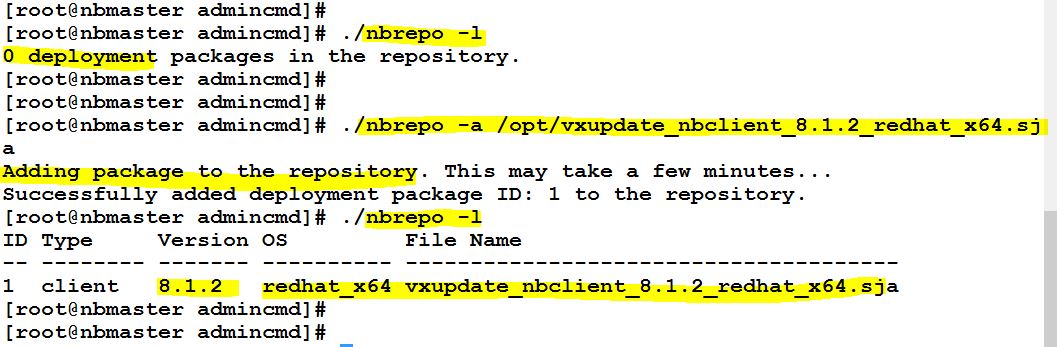
nbrepo
Use the nbrepo command to manage the NetBackup package repository. You can add, validate, and delete packages, as well as obtain package identifier and other information on packages in the repository. This command is only located on the master server.


nbinstallcmd
Use the nbinstallcmd command to initiate the deployment policies from the command line. You can also use the command to initiate on-demand deployment jobs.

The package types you can load into the repository include:

VxUpdate client packages
You can upgrade NetBackup clients to a newer version of NetBackup with VxUpdate. These packages are slightly different from standard NetBackup client packages. The packages include additional components to support the various VxUpdate operations.

Emergency binaries (EEBs) and hotfixes
You can use VxUpdate to deploy emergency binaries and hotfixes to NetBackup 8.1.2 clients. You can obtain VxUpdate formatted EEBs from support in the same way you obtain traditional EEBs. These EEBs are only for NetBackup version 8.1.2 and later. Any client hotfixes that Veritas creates for NetBackup 8.1.2 and later releases include VxUpdate formatted fixes.


Schedule types:

Precheck
Performs the various precheck operations, including confirming there is sufficient space on the client for the update. The precheck schedule type does not exist for EEB packages.

Stage
Moves the update package to the client, but does not install it. Also performs the precheck operation.

Install
Installs the specified package. Also performs the precheck and the stage package operations. If you already performed the stage package operation, the install schedule does not move the package again.

Create a New Deployment Policy.


In the Attributes tab, Select the package from the repository and select the host to upgrade.


 Create a schedule. (PreCheck or Stage or Install).


Manually run the policy, and view the job status in WebUI.